
· Andrei M. · ERP Integration · 8 min read
Connect NetSuite to Your E-commerce Store Using MicroPIM
Learn how MicroPIM bridges the gap between Oracle NetSuite and your e-commerce platforms like Shopify, Magento, and Gomag with built-in ERP field mapping and AI-powered product enrichment.
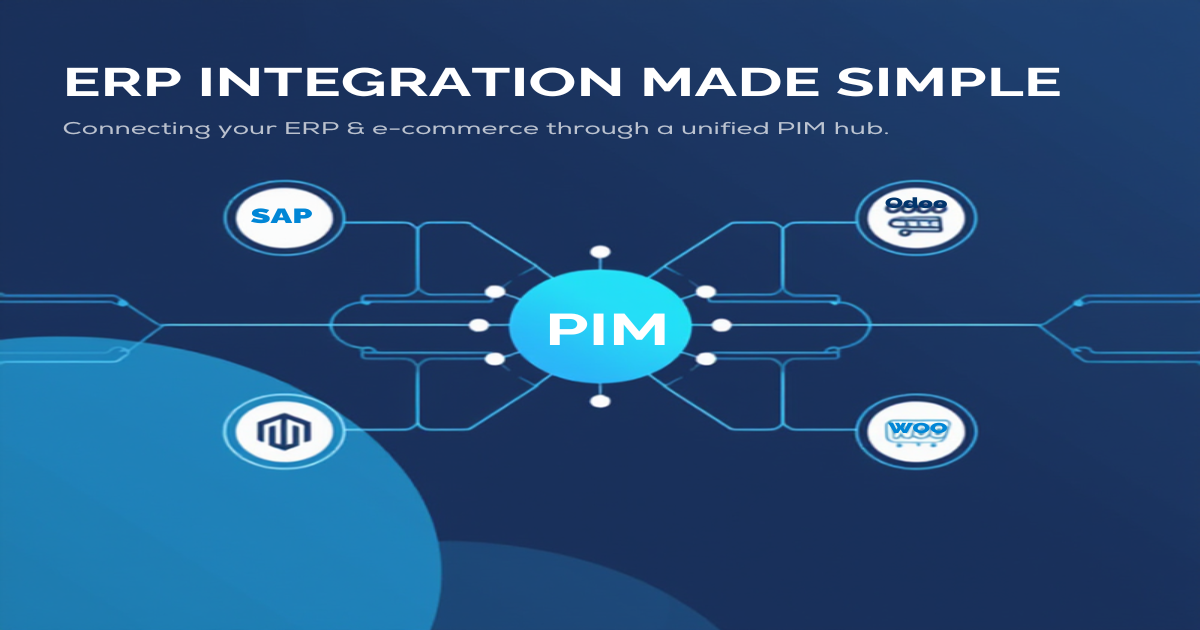
Businesses running Oracle NetSuite as their ERP backbone often hit the same wall: NetSuite is excellent at managing financials, inventory, and procurement, but it was never designed to feed polished, channel-ready product data to Shopify, Magento, or any other storefront. If you want to connect NetSuite to e-commerce without building a brittle point-to-point integration, a Product Information Management layer is the right answer — and that is exactly what MicroPIM is built to do.
This guide walks through why a PIM sits between NetSuite and your storefronts, how MicroPIM maps NetSuite fields to its own data model, and how to get your first products flowing from ERP to channel in a predictable, maintainable way.
Why NetSuite Needs a PIM Layer
NetSuite stores the authoritative data your business runs on: costs, tax schedules, vendor lead times, reorder points, and warehouse locations. What it does not store well is the marketing and channel-specific data that makes a product page convert: rich descriptions, SEO titles, high-quality imagery in multiple aspect ratios, size guides, translated copy for every market, and variant matrices that make sense to a shopper rather than a warehouse picker.
Without a PIM in the middle, teams typically resort to one of two workarounds. They export a spreadsheet from NetSuite, manually enrich it, and upload it to each storefront — a process that breaks the moment a cost or supplier changes. Or they write custom integration scripts that tie NetSuite fields directly to storefront fields, which works until the storefront upgrades its API or a new sales channel is added.
A PIM layer solves both problems. NetSuite remains the system of record for operational fields. MicroPIM becomes the system of record for commercial content. Changes in either direction flow through a defined mapping instead of a tangle of scripts. Teams that need to launch on a new channel — say, adding Gomag or a new Magento store — do so by configuring a new output in MicroPIM, not by rebuilding an integration from scratch.
For teams evaluating other ERP connectors alongside NetSuite, MicroPIM follows the same pattern for SAP Business One, Dynamics 365, Odoo, and Pluriva. You can also explore the full list of supported platforms and integrations to see how MicroPIM fits into your stack.
How MicroPIM Maps to NetSuite Fields
MicroPIM ships with a structured field model that covers the ERP fields most commonly exported from NetSuite inventory items. The table below shows how each NetSuite field lands in MicroPIM.
| NetSuite Field | MicroPIM Field | Description |
|---|---|---|
| itemid | sku | Item identifier |
| displayname | name | Product display name |
| cost | costPrice | Cost/purchase price |
| costEstimateType | costValuationMethod | Standard, Average, FIFO, LIFO |
| purchaseDescription | purchaseDescription | Vendor-facing description |
| purchaseUnit | purchaseUom | Purchase unit of measure |
| countryOfOrigin | countryOfOrigin | ISO country code |
| weight | weight | Product weight |
| listPrice | price | Selling price |
| taxSchedule | taxClassificationCode | Tax classification |
| preferredLocation | warehouse (multi-warehouse) | Inventory location |
| vendorLeadTime | supplier.leadTimeDays | Supplier lead time |
| reorderPoint | reorderPoint (via warehouse) | Reorder threshold |
| customFields | integrationData (JSON) | Flexible ERP-specific data |
A few points worth noting. The costValuationMethod field maps directly to MicroPIM’s CostValuationMethod enum, which supports Standard, Average, FIFO, and LIFO — the same valuation strategies NetSuite exposes. This means your accounting team’s costing method is preserved all the way through to PIM without any lossy conversion.
The integrationData JSON column is deliberately open-ended. NetSuite custom fields — the ones specific to your implementation — land here and remain queryable without requiring a schema migration every time your NetSuite administrator adds a new field. For advanced teams, this data is also available to MicroPIM’s AI field mapper, which can suggest target field mappings based on field names and sample values.
Tax data deserves special mention. MicroPIM has a full VAT and tax classification system that stores rates per organization, supports EU country codes, and tracks whether prices include or exclude tax. When taxSchedule comes in from NetSuite, it maps to taxClassificationCode and connects to MicroPIM’s VAT rate engine, so your Shopify or Magento listings always carry the correct tax treatment.
Step-by-Step Integration Workflow
Getting NetSuite data into MicroPIM and then out to your storefronts follows a straightforward path. The steps below describe the typical implementation.
Step 1 — Export from NetSuite. Use a saved search or a SuiteScript that targets Inventory Item records. Export the fields listed in the mapping table above as a CSV or JSON file. Saved search scheduling in NetSuite can automate this export on a daily or hourly cadence.
Step 2 — Import into MicroPIM. Upload the exported file through MicroPIM’s Import module. If you are new to MicroPIM, the getting started guide walks through account setup and first import, and the feed import guide covers file-based imports in detail. On the field mapping screen, MicroPIM’s AI-powered field mapper reads the column headers and sample values from your export and suggests which MicroPIM field each column should map to. For a clean NetSuite export the suggestions are typically accurate. Review, adjust where needed, and save the mapping as a named profile so every subsequent import uses the same configuration automatically.
Step 3 — Enrich the product data. This is where MicroPIM adds value that NetSuite cannot provide. For each imported product you can write or generate SEO-optimized names and descriptions, add marketing copy, attach imagery, define product variants, and configure channel-specific overrides. MicroPIM’s AI image generation powered by Nano Banana Pro lets you generate polished studio-style product images from a reference photo. The AI translation feature via Claude AI covers 21 languages and maintains an approval workflow so a human reviewer signs off before translated copy goes live. None of this enrichment touches NetSuite — it lives in MicroPIM and travels outward to your storefronts.
Step 4 — Push to your storefronts. MicroPIM has native integrations with Shopify, Magento, and Gomag. Configure each integration with your store credentials and select which products or categories to sync. Sync jobs run asynchronously through MicroPIM’s message queue, so large catalogs do not time out and individual failures do not block the rest of the batch. Each platform integration has its own retry strategy and sync status log, giving you visibility into exactly which products are live on which channel.
Step 5 — Keep data in sync. When NetSuite records change — a new cost estimate, a revised lead time, a stock movement to a different warehouse — re-run the import with the updated export file. MicroPIM’s conflict strategy options let you choose whether to skip products that already exist, update their operational fields only, or allow full overwrite. Because enrichment fields like descriptions and images are stored separately from ERP-origin fields, updating cost or weight from a fresh NetSuite export does not wipe out the marketing copy your team spent time writing.
For teams connecting WooCommerce rather than Shopify or Magento, the same pattern applies and is described in detail in the WooCommerce ERP integration guide.
Key MicroPIM Features for NetSuite Users
Beyond field mapping and import, several MicroPIM capabilities are particularly relevant for companies coming from a NetSuite environment.
Multi-warehouse inventory. NetSuite’s preferredLocation field maps to MicroPIM’s warehouse layer, which supports multiple warehouse locations per product. If your NetSuite setup tracks inventory across three distribution centers, MicroPIM represents each as a separate warehouse with its own stock level, reorder point, and bin location. Shopify and Magento integrations can then publish inventory to the correct location on each platform.
Product variants. NetSuite matrix items map to MicroPIM’s product variant system. Size, color, material, or any other dimension is modeled as a variant attribute. Each variant carries its own SKU, price, and stock level, all traceable back to the NetSuite item records they originated from.
VAT and tax system. For businesses selling across EU borders, MicroPIM’s VAT engine stores country-specific rates and handles both tax-inclusive and tax-exclusive pricing. NetSuite’s tax schedules feed in through taxClassificationCode, and MicroPIM calculates the correct customer-facing price per country without manual recalculation.
AI-powered product content. Once operational data is in from NetSuite, MicroPIM can generate product names, short descriptions, long descriptions, and SEO metadata using Claude AI. Prompt templates are configurable per organization and can reference product attributes, category, and brand to produce context-aware output. Combined with AI translations, this means a product imported from NetSuite this morning can have ready-to-publish copy in English, German, French, and Romanian by this afternoon.
Audit trail and conflict detection. Every import run logs which fields changed and why. If a NetSuite export updates a cost that differs from what MicroPIM currently holds, the conflict is flagged in the import review screen before any change is committed.
For a broader look at how MicroPIM handles ERP integrations across multiple vendors, the Senior ERP integration guide covers the architectural patterns in more depth.
Getting Started
Connecting NetSuite to your e-commerce store through MicroPIM does not require a long implementation project. Most teams complete the initial field mapping and first successful sync within a working day.
Start by listing the NetSuite item fields your storefronts currently consume and cross-referencing them against the mapping table above. If your NetSuite implementation uses custom fields, note their internal IDs — they will land in integrationData by default, and you can remap them to dedicated MicroPIM fields if needed.
From there, the process is iterative. Import a small batch of products, enrich a handful manually to validate the workflow, push to a test environment on your storefront, and review the results before rolling out to your full catalog.
If you would rather see the integration running before committing time to a full setup, book a demo and we will walk through the NetSuite-to-storefront flow using a sample catalog. If you are ready to start directly, the free trial gives you full access to the import module, all platform integrations, and the AI enrichment tools.
Start your free trial, check our pricing, or book a demo to see how MicroPIM handles your specific NetSuite configuration. Have questions? Contact our team — we are happy to help.
Also in this series: SAP Business One integration, Dynamics 365 integration, Odoo product sync, Pluriva integration, Senior ERP integration, and WooCommerce ERP integration.