
· Andrei M. · Integrations · 14 min read
BigCommerce Product Import Made Easy: Connect MicroPIM in 5 Minutes
Connect your BigCommerce store to MicroPIM in minutes. Sync products, inventory, and pricing with automated daily updates.
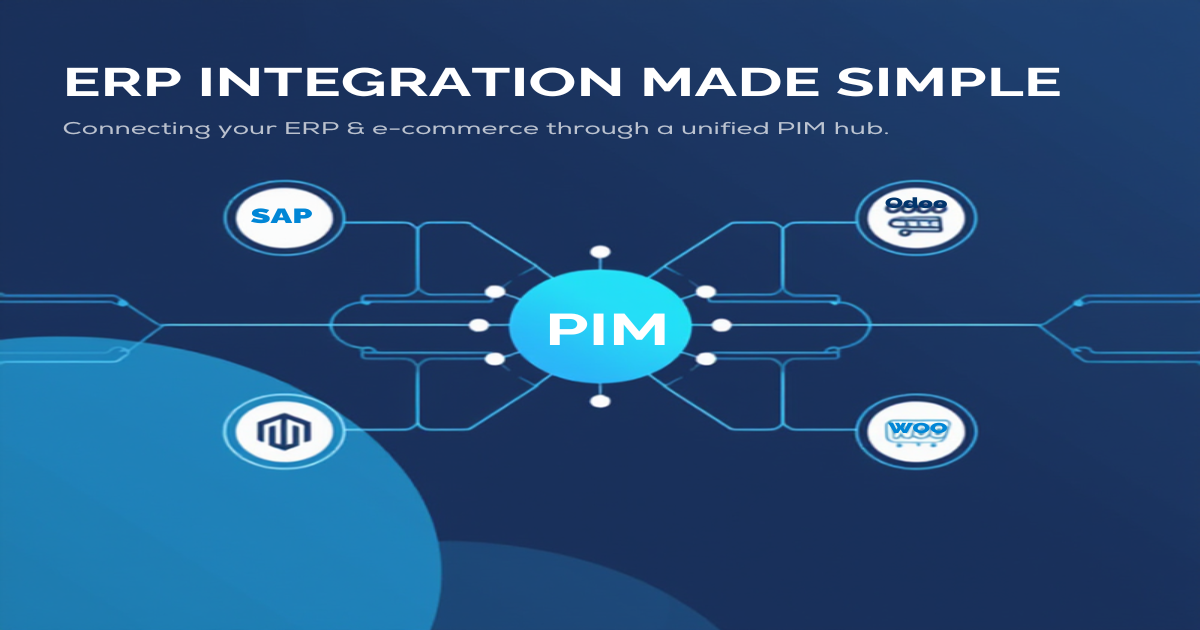
Managing products across a growing BigCommerce catalog is straightforward until it is not. Native import tools handle modest catalogs with simple structures well enough, but the moment you introduce variants at scale, multi-warehouse inventory, pricing tiers, or data originating from an ERP, those tools stop being adequate. This guide covers the complete process of connecting MicroPIM to BigCommerce — authenticating with the V3 Catalog API, mapping fields and variants, syncing inventory across locations, and scheduling automated updates that run without manual intervention. If you have five minutes to follow the setup steps, you will have a working bigcommerce product import integration by the end.
BigCommerce V3 Catalog API: What It Can Actually Do
Most teams connecting to BigCommerce for the first time are surprised by how capable the V3 Catalog API is compared to the native import tools available in the admin panel.
The V3 API treats products, variants, custom fields, and inventory as distinct resources with their own endpoints and their own update paths. This matters operationally because it means you can update inventory levels without touching product data, update pricing without triggering a full product sync, and push custom field values independently of the core product record. For teams running high-frequency bigcommerce api product sync operations, this granularity is the difference between efficient partial updates and expensive full-record replacements.
Key capabilities in the V3 Catalog API that MicroPIM uses directly:
- Batch product creation and updates via
POST /v3/catalog/productswith detailed per-item error responses. Unlike APIs that return a single failure for an entire batch, BigCommerce returns the result for each item individually, which makes error handling and retry logic practical at scale. - Variant management through separate
/variantsendpoints, supporting up to 600 variants per product with configurable option combinations. - Custom fields as a native resource, accessible at
GET/POST /v3/catalog/products/{id}/custom-fields. No theme development required to push extended product attributes. - Inventory by location via
/v3/inventory/locations, enabling multi-warehouse stock levels per SKU without collapsing quantities into a single aggregate. - Pricing overrides through price lists for customer group and channel-specific pricing that operates independently of the base product price.
The V3 API also provides a BigCommerce product database query interface that supports filtering by SKU, category, custom field values, and modification date — which is the mechanism MicroPIM uses to detect changes and avoid re-pushing records that have not changed.
Why BigCommerce Needs Robust Data Ingestion Beyond Native Tools
The BigCommerce admin panel provides two native import paths: CSV upload and Google Shopping feed format. Both work for initial catalog population and low-frequency manual updates. Neither is adequate for ongoing product information flow at scale.
CSV imports are stateless. Every time you run a CSV import, BigCommerce processes the entire file and overwrites the affected records. There is no concept of a delta — changed records versus unchanged records. For a catalog of 10,000 products where 200 records changed since the last sync, a CSV import pushes all 10,000 records. This is inefficient and introduces unnecessary write load on the platform.
CSV imports do not handle variants cleanly. Products with multiple variants require multiple rows in the CSV file with specific column formatting for option names and values. A single malformed row can corrupt the variant set for an entire product. For catalogs with complex variant structures — apparel with size, color, and fit options; industrial products with material, finish, and dimension combinations — CSV import becomes difficult to maintain reliably.
There is no scheduling mechanism. Bulk upload products bigcommerce via CSV requires a human to be present for every import cycle. If your product data changes daily — because it originates from an ERP where prices update overnight or inventory changes continuously — manual imports create a perpetual data lag.
Custom fields and inventory require separate steps. Native CSV import covers core product fields but does not populate custom fields or multi-location inventory levels through the same file. Teams that need all three typically end up running three separate import processes.
MicroPIM’s bigcommerce product import integration resolves each of these limitations. It runs API-based delta syncs that push only changed records, handles variant structures natively, schedules automated runs on configurable intervals, and manages custom fields and inventory through the same sync operation.
For a broader view of how automated imports and exports work across all connected channels, see the automate imports and exports with MicroPIM guide.
MicroPIM BigCommerce Integration Setup: Prerequisites
Before starting the connection, confirm the following are in place.
On the BigCommerce side:
- Store admin access (Owner or Administrator role) to generate API credentials.
- BigCommerce Essentials plan or higher. The V3 Catalog API and multi-location inventory endpoints are available on all paid plans.
- If you intend to sync inventory across multiple warehouse locations, ensure those locations are configured in BigCommerce under Settings > Inventory > Locations before starting.
On the MicroPIM side:
- An active MicroPIM account. If you do not have one, the getting started with MicroPIM guide walks through the initial account setup and first catalog import.
- Products already present in MicroPIM, or a data source (ERP, spreadsheet, or supplier feed) ready to import. The BigCommerce integration is an export path — MicroPIM sends product data to BigCommerce, so the source catalog needs to exist in MicroPIM first.
- Export template configured or ready to configure. MicroPIM uses per-channel export templates to map its product model to the target platform’s field structure.
Authenticating with the BigCommerce API
BigCommerce uses a server-to-server credential model for API integrations rather than OAuth. There is no redirect flow or token exchange. You generate a set of API credentials in your store admin and provide them to MicroPIM directly.
Step 1: Generate API credentials in BigCommerce
Navigate to Settings > API > Store-level API Accounts in your BigCommerce admin panel. Click Create API Account and select V2/V3 API Token as the account type.
Set the following scopes — MicroPIM requires read and write access to the resources it manages:
| Scope | Required Level |
|---|---|
| Products | Modify |
| Product Categories | Modify |
| Product Variants | Modify |
| Custom Fields | Modify |
| Inventory | Modify |
| Carts | None |
| Orders | None (unless using order sync) |
After saving, BigCommerce displays the credentials once. Copy and store them immediately:
- Client ID — identifies your API account
- Client Secret — used to sign requests
- Access Token — the token MicroPIM uses to authenticate each request
- Store Hash — the unique identifier for your store, visible in the URL as
store-{hash}
You do not need the Client Secret for the MicroPIM connection — only the Access Token and Store Hash are required. The Client Secret is useful if you are building a custom OAuth app, which is not the case here.
Step 2: Enter credentials in MicroPIM
In MicroPIM, navigate to Integrations > BigCommerce and click Add Connection. Enter your Store Hash and Access Token. MicroPIM validates the credentials immediately by making a test request to your store’s API and confirming the required scopes are present.
If validation fails, the most common cause is insufficient scopes. Return to BigCommerce, edit the API account, and confirm that Products, Product Variants, Custom Fields, and Inventory are all set to Modify.
Field Mapping: Custom Fields, Variants, and Categories
Once the connection is authenticated, MicroPIM presents the field mapping configuration for the BigCommerce channel. This is where you define how your MicroPIM product model translates to BigCommerce’s data structure.
Core Product Field Mapping
MicroPIM’s standard product fields map directly to BigCommerce core fields with no configuration required for common attributes:
| MicroPIM Field | BigCommerce Field |
|---|---|
| SKU | SKU |
| Name | Name |
| Description (HTML) | Description |
| Brand | Brand name |
| Base price | Price |
| Sale price | Sale price |
| Cost price | Cost price |
| Weight | Weight |
| Status (active/inactive) | Is visible |
| Main image | Images[0] |
| Additional images | Images[1..n] |
These mappings are pre-configured in the BigCommerce export template and require no manual setup for standard catalogs.
Variant Mapping
BigCommerce handles variants through a combination of Option Sets (the option types, such as Color or Size) and Variants (the specific combinations, such as Blue / Medium). MicroPIM maps its variant model to this structure automatically when it detects variant attributes on a product.
For each variant attribute defined in MicroPIM, the integration creates or reuses the corresponding BigCommerce option type and pushes the variant records with their specific SKU, price override, weight override, and inventory quantity. If a variant already exists in BigCommerce and the SKU matches, MicroPIM updates it rather than creating a duplicate.
Custom variant-level fields — such as variant-specific dimensions or compliance codes — map to BigCommerce variant-level custom fields if they are configured in the export template.
Custom Fields
Custom fields in BigCommerce are product-level key-value pairs that store extended attributes. Common uses include ERP reference codes, supplier part numbers, technical specifications, and compliance certifications. MicroPIM supports mapping any product attribute to a BigCommerce custom field through the export template.
To configure a custom field mapping, navigate to the BigCommerce export template in MicroPIM and add a field rule: select the MicroPIM attribute, set the target type to Custom Field, and enter the custom field name that will appear in BigCommerce. The integration creates the custom field on first push and updates it on subsequent syncs.
Category Mapping
MicroPIM’s category assignments map to BigCommerce category IDs. The integration supports two approaches:
Static mapping: You define a correspondence table in MicroPIM that maps each MicroPIM category to a specific BigCommerce category ID. This is reliable and predictable.
Auto-create: If a product’s MicroPIM category does not exist in BigCommerce, the integration creates it automatically and caches the resulting category ID for subsequent products in the same category.
For most initial catalog pushes, the auto-create approach is faster. For ongoing syncs where the BigCommerce category tree is stable, static mapping avoids unintended category creation.
Syncing Inventory and Pricing to BigCommerce
Inventory and pricing are the two data types that change most frequently in a live catalog. Getting these right in the bigcommerce inventory sync configuration determines whether your store reflects accurate availability in real time.
Multi-Warehouse Inventory
BigCommerce’s multi-location inventory model allows each SKU to carry a separate quantity per warehouse location. MicroPIM maps its warehouse structure to BigCommerce locations during the initial connection setup. Each MicroPIM warehouse is linked to the corresponding BigCommerce location ID.
When inventory quantities change in MicroPIM — whether from an ERP sync, a manual update, or a receiving event — the integration pushes the updated quantities to the correct BigCommerce location. The storefront displays aggregate availability to shoppers, while the admin panel shows the breakdown by location.
For catalogs already connected to an ERP through MicroPIM, this creates a complete middleware product data flow: ERP updates inventory in MicroPIM, MicroPIM pushes the change to BigCommerce, BigCommerce reflects the updated availability to shoppers — without any manual step in the chain.
For a detailed guide to the multi-warehouse inventory sync configuration, see the multi-warehouse inventory sync guide.
Pricing Sync
MicroPIM supports three levels of price data, all of which can push to BigCommerce:
Base price maps to BigCommerce’s standard product or variant price. This is the price shown to all shoppers not covered by a specific price list.
Sale price maps to BigCommerce’s sale price field and activates the strikethrough display on the storefront when present.
Customer group pricing — where MicroPIM carries price tier data from an ERP’s customer pricing model — maps to BigCommerce price lists. MicroPIM creates or updates the price list entries for each customer group, linking them to the corresponding BigCommerce customer groups.
Pricing updates follow the same delta logic as product updates: only records with changed prices are pushed during a sync. This keeps API usage efficient even for catalogs with frequent supplier price adjustments.
Testing Product Export: Validation Steps
Before enabling automated scheduling, validate the integration with a controlled test export to confirm field mapping, variant structure, and inventory levels are correct.
Step 1: Select a test product set
In MicroPIM, create a test export set containing five to ten products that represent the range of complexity in your catalog: a simple single-variant product, a product with multiple variants, a product with custom fields, and a product with multi-location inventory if applicable.
Step 2: Run a manual sync
Navigate to Integrations > BigCommerce > Sync Now and select the test product set. MicroPIM pushes the records to BigCommerce and returns a per-product result report showing success, warning, or error status for each record.
Step 3: Verify in BigCommerce admin
Open each test product in the BigCommerce admin panel and confirm:
- Product name, description, and images are correct
- Variants are present with the correct option names and values
- SKU, price, and sale price match MicroPIM values
- Custom fields are present with correct names and values
- Inventory quantities match MicroPIM warehouse totals per location
Step 4: Check storefront display
Preview each test product on the storefront to confirm that the product description renders correctly, variant selectors are functional, and availability reflects the inventory quantities pushed from MicroPIM.
Step 5: Review error logs
If any records returned an error or warning status, review the error detail in the MicroPIM sync log. BigCommerce’s V3 API returns specific validation messages per field — for example, a variant SKU that conflicts with an existing product, or a category ID that does not exist in the target store. Address these before enabling automated syncs to avoid recurring failures.
Scheduling Automated Syncs with Cron Jobs
Once the test export validates correctly, the final step is configuring scheduled automation for ongoing product information flow without manual intervention.
MicroPIM’s Built-In Scheduler
MicroPIM includes a scheduling interface for configuring automated bigcommerce api product sync jobs. Navigate to Integrations > BigCommerce > Schedule to configure sync frequency, scope, and notification behavior.
Common scheduling configurations:
Daily full product sync (overnight): Runs at 02:00 local time, pushes all products with changes detected since the previous sync. Suitable for catalogs where product content changes frequently — new descriptions, updated images, category reassignments.
Hourly inventory sync: Pushes inventory quantity updates every hour using the delta detection system. Practical for high-volume catalogs where stock levels change throughout the day due to sales or receiving activity.
Twice-daily pricing sync: Runs at 06:00 and 18:00, pushing price changes from the ERP’s nightly pricing update. Balances freshness with API efficiency.
Each scheduled job can be scoped independently — inventory sync can run hourly while the full product sync runs nightly — so API usage stays proportional to how frequently each data type changes.
External Cron Job Integration
For teams that prefer to trigger syncs from an external scheduler — a CI/CD pipeline, an ERP automation layer, or a server cron job — MicroPIM exposes a webhook endpoint for each configured channel sync. A standard cron job calling the endpoint over HTTPS triggers the sync on demand:
POST https://app.micropim.net/api/v1/channels/bigcommerce/sync
Authorization: Bearer {your-api-token}
Content-Type: application/json
{"scope": "products", "mode": "delta"}
This approach is useful when you want the sync to run immediately after the ERP completes its nightly batch rather than on a fixed clock schedule. The ERP batch completes, triggers the MicroPIM webhook, MicroPIM detects the changed records and pushes to BigCommerce — the real-time synchronization chain completes in a single automated sequence.
Monitoring and Alerts
MicroPIM sends email notifications for sync failures and for syncs where the error rate exceeds a configurable threshold. For teams running fully automated pipelines, the notification system provides the observability needed to catch issues — a BigCommerce API rate limit breach, an authentication token expiry, a field validation error on newly introduced products — without requiring active monitoring.
Sync history is retained in the MicroPIM dashboard with per-record results, timestamps, and API response details. For debugging, the full response payload from BigCommerce is available for any failed record.
A properly configured BigCommerce product import integration through MicroPIM replaces a fragile, manual data management process with a reliable, automated pipeline. Products originate in MicroPIM — whether entered manually, imported from a spreadsheet, or fed from an ERP — and flow to BigCommerce through a structured API integration that handles variants, custom fields, multi-warehouse inventory, and pricing in a single coordinated sync.
The setup described in this guide — credentials, field mapping, variant configuration, inventory sync, and scheduled automation — takes under an hour to complete for a typical catalog. After that, the integration runs without intervention unless the underlying data model changes.
If you want to compare how this integration approach differs from BigCommerce’s native import tools or from the Shopify integration path, the Shopify vs BigCommerce product management guide covers both platforms side by side from a product data operations perspective.
Ready to connect your BigCommerce store? Start your free 14-day trial — no credit card required. The BigCommerce connector is available on all plan tiers, and the initial sync can be running within your first session.